The TickForge window
TickForge is a single workspace of movable, resizable widgets — charts, scanners, a watchlist, order entry, and more — that you arrange to suit how you trade.
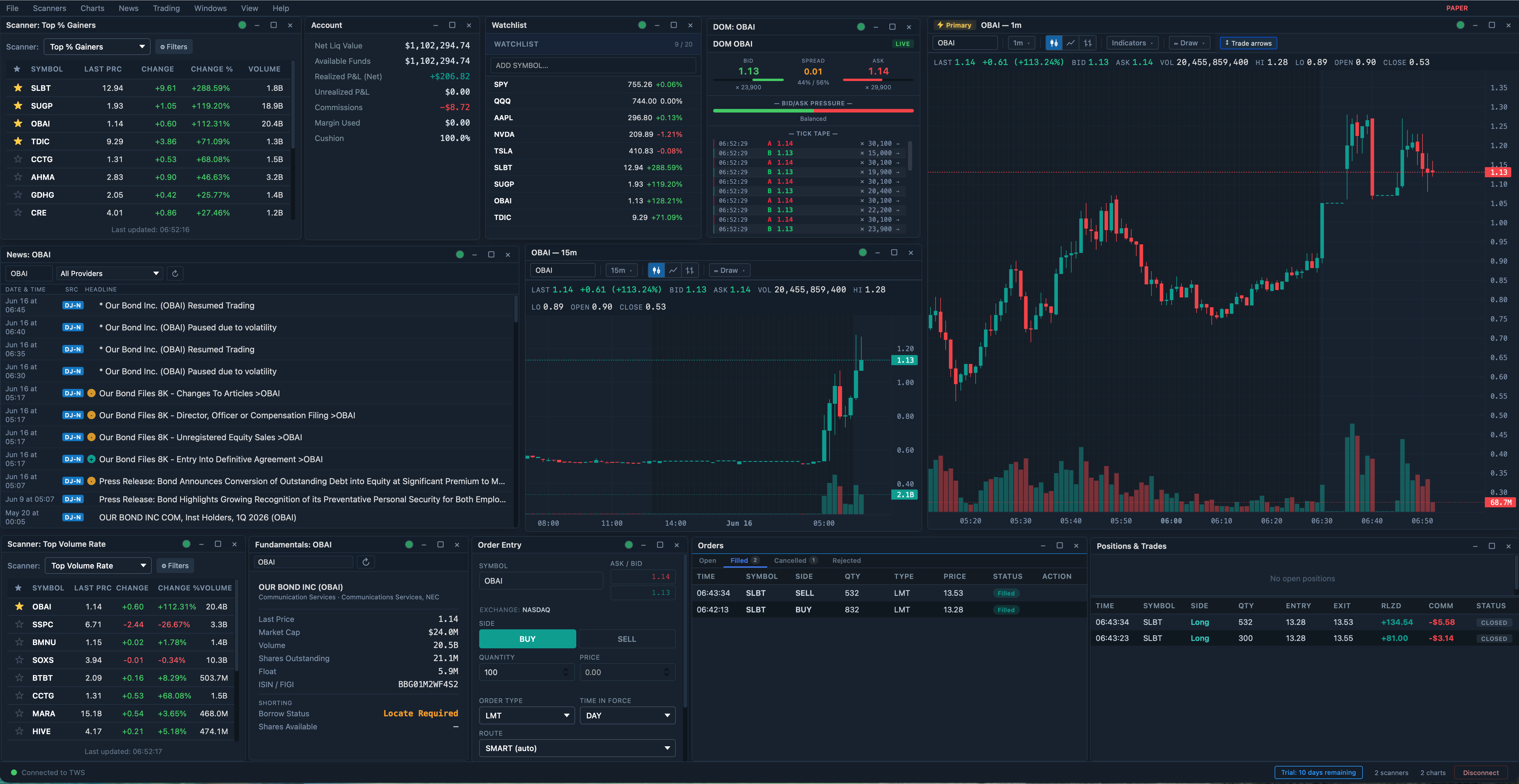
A typical workspace: scanners and a watchlist on the left, charts and market depth on the right, and trading widgets along the bottom.
Arranging your workspace
Every widget has a title bar you can drag to move it, plus edges and corners you can drag to resize. The title bar also carries:
- Minimize (–) collapses the widget to just its title bar.
- Maximize (□) fills the window — double-clicking the title bar does the same.
- Close (✕) removes the widget.
The active widget is highlighted, and your whole layout — positions, sizes, and the symbol in each widget — is restored exactly as you left it the next time you launch.
Open more widgets from the menu bar (Scanners, Charts, News, Trading…), and save arrangements you like with File → Save Layout As….
Link groups
Link groups keep widgets in sync. Click the small colored circle on a widget's title bar and assign it a color; every widget that shares that color follows the same active symbol. Click a row in a red-linked scanner, for example, and your red-linked chart, watchlist, and order-entry widgets all jump to that symbol at once. Choose None to leave a widget independent.
The menu bar and status bar
The menu bar across the top opens widgets and actions: File (layouts), Scanners, Charts, News, Trading, Windows, View, and Help.
The status bar along the bottom shows your connection at a glance — PAPER or LIVE, and whether you're connected — alongside your net liquidation value, open-order count, active scanners, and chart count.
The risk chip
If you've enabled the daily max-loss guardrail, the status bar also carries a live risk chip. It reads your distance to the limit — −$312 / −$500 — and steps from neutral to amber as you approach it, to red once you breach. Its states:
- Hidden — the guardrail is off.
- Armed — your loss so far against your limit, updating live.
- BREACHED — the limit is reached; new risk-increasing orders are blocked (or warned on, depending on your mode) for the rest of the session. Flatten and close still work.
- Guardrail inactive — enabled, but there's no account or P&L data yet, so nothing is being enforced.
Click the chip to jump straight to the Risk settings.
Where to next
- Widgets — what each widget shows and does.