Connect Claude Desktop
TickForge connects to Claude Desktop so you can ask about your account, your positions, the market, and your charts in plain English — and place orders by simply describing them. It is powered by MCP (Model Context Protocol), the open standard that lets Claude Desktop securely use TickForge as a tool.
Think of it as an AI analyst that already knows your portfolio: you ask, and TickForge answers with your real, live data — no copy-pasting numbers into a chat window.
What you can do
- Ask about your account — "What are my open positions and total P&L right now?"
- Get a market briefing — "Summarize today's news for everything I'm holding."
- Analyze a setup — "Talk me through the AAPL chart — where's support and my risk?"
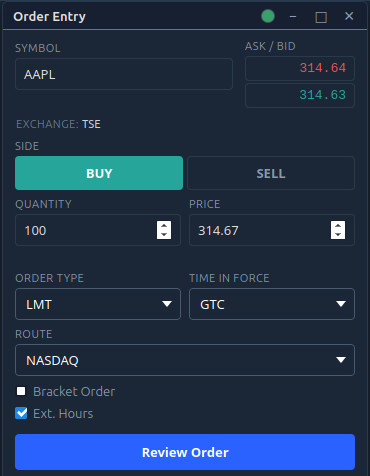
- Place orders by describing them — "Place a limit buy for 100 AAPL at 220." You always approve the order yourself (see Built-in safety).
- Set Smart Alerts — "Tell me when AAPL reclaims VWAP." TickForge watches the live market and notifies you; alerts only notify, they never trade.
Setting it up
You connect once. It takes about a minute.
- Open TickForge and sign in.
- Go to Settings → Connection and turn on "Claude Desktop (MCP)" (it is off by default).
- TickForge shows a small config snippet with the correct path for your operating system. Click Copy.
- Paste it into Claude Desktop's
claude_desktop_config.json(TickForge shows you exactly where the file lives), then restart Claude Desktop. - Start a chat in Claude Desktop and ask it about your account.
The config snippet
The snippet looks like this — TickForge fills in the correct absolute path for your OS, so use the one the app shows you:
{
"mcpServers": {
"tickforge": {
"command": "/Applications/TickForge.app/Contents/MacOS/tickforge-mcp"
}
}
}
On Windows the command points at tickforge-mcp.exe in the install directory; on Linux it points at the bridge TickForge materializes under your home directory. Always copy the snippet from the app rather than typing the path by hand.
Requirements: TickForge must be running and you must be signed in for Claude to reach it. If TickForge is closed, Claude simply tells you it can't connect — nothing breaks.
Built-in safety
This is real money, so the integration is built conservatively on purpose.
- You approve every order. Claude can propose a trade, but it can never place one on its own. When it tries, TickForge pops a confirmation dialog showing the exact order — symbol, side, quantity, price — and who requested it. Nothing reaches your broker until you click approve. Ignore it and it cancels itself.
- Everything stays on your machine. Claude talks to your own running copy of TickForge over a private, local, token-protected channel. Your positions and account data are not sent to any TickForge server to make this work.
- No secrets exposed. The integration never hands Claude your password or login tokens.
- Turn it off any time. Flip the Settings toggle off and the connection closes immediately.
Smart Alerts
You can't watch every chart at once, and Claude reads a snapshot when you ask — it doesn't sit watching the tape. So describe what you're waiting for, and TickForge does the real-time monitoring:
- "Watch AAPL and notify me when it reclaims VWAP with rising volume."
- "Tell me if NVDA drops below 170."
TickForge fires a desktop notification the moment your condition hits. Then you can ask Claude to act on it — and approve the order. A Smart Alert firing never places an order on its own. Alerts are cleared when you exit TickForge; re-arm them next session.
What it can't do
Setting expectations honestly so the feature actually helps you:
- It is not an automated trading bot. Every action is something you asked for and then approved — including anything prompted by a Smart Alert.
- It needs the app open. Close TickForge or sign out and the tools (and your Smart Alerts) stop until you're back.
- It is not financial advice. Claude is a knowledgeable second opinion reasoning over your data — not an oracle, and not a guarantee. Your decisions and your risk rules are yours.
FAQ
Is my trading data sent to the cloud?
No. The connection is local to your computer. Claude reads your data from your own running TickForge to answer your questions; it isn't uploaded to a TickForge server.
Can Claude place a trade without me knowing?
No. Every order triggers an in-app confirmation you must approve. No approval, no trade — and a Smart Alert firing never places an order either.
Does it work when TickForge is closed?
No — it needs the app running and you signed in. When it's closed, Claude just tells you it can't connect.
Where to next
- Connect other AI apps — use TickForge's MCP tools from other assistants.