Settings
The Settings dialog is where you fine-tune how TickForge connects, trades, scans, manages risk, and looks. Each tab is covered below in the order it appears; click Save to apply your changes.
Connection
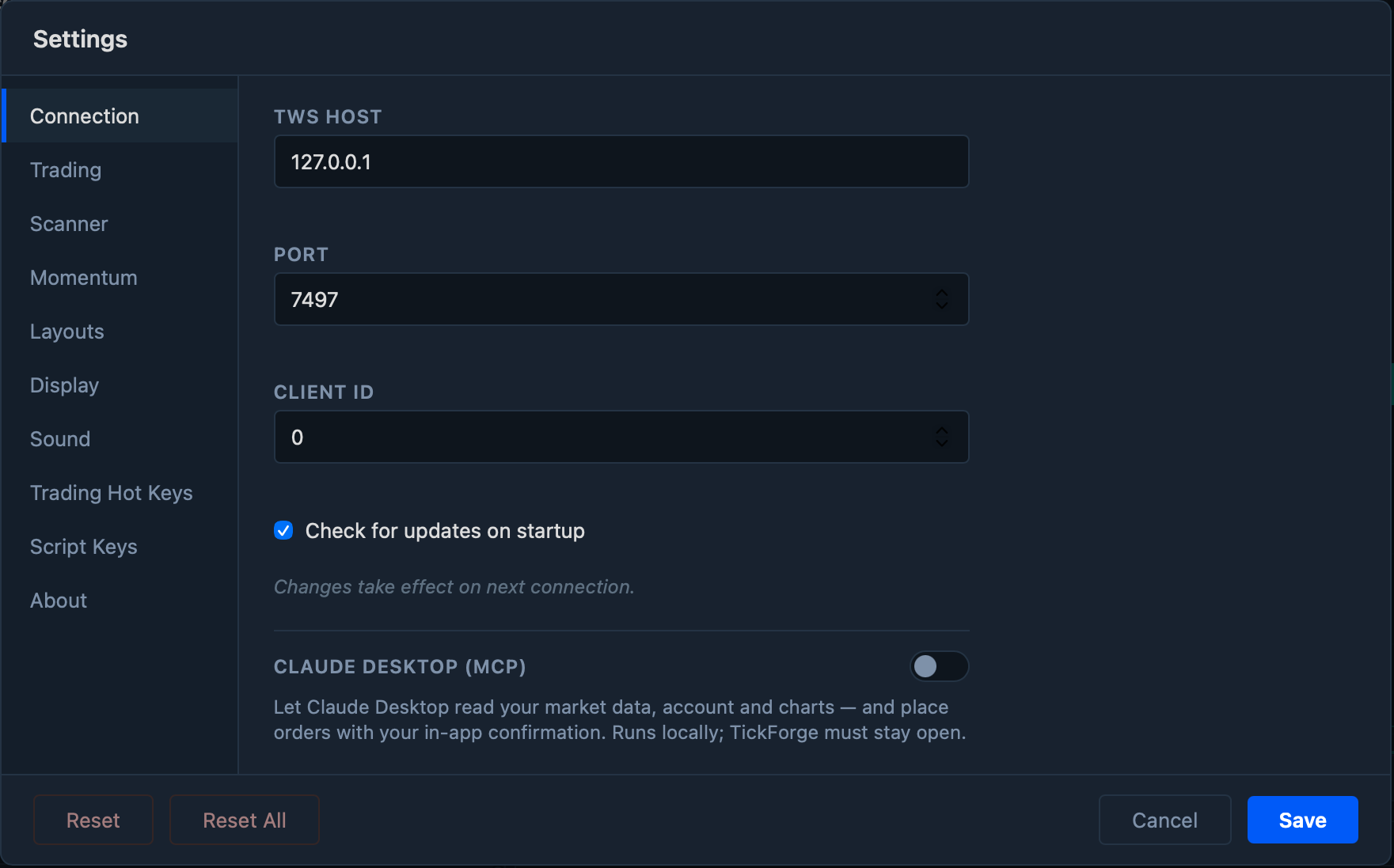
Point TickForge at your TWS or IB Gateway session: TWS Host (default 127.0.0.1), Port, and Client ID. You can also enable Check for updates on startup. Connection changes take effect the next time TickForge connects.
Trading
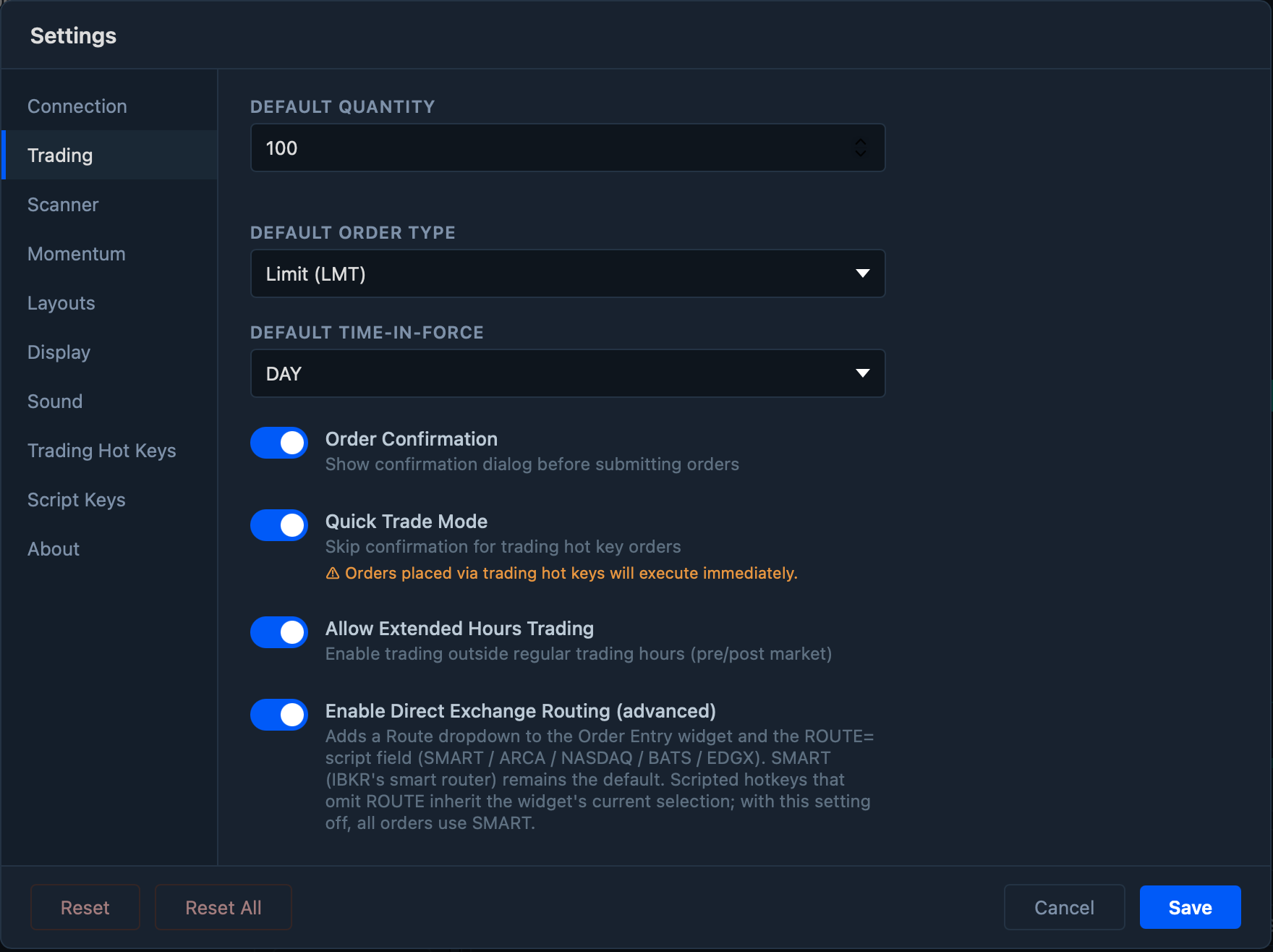
Defaults for new orders — Default quantity, Default order type (Market, Limit, Stop, Stop-Limit), and Time-in-Force (DAY, GTC, IOC, FOK). The key toggles:
- Order confirmation — show a review dialog before every order. Turn it off to enable Quick Trade Mode, which lets hot-key orders fire instantly (use with care).
- Allow extended-hours trading — permit pre- and post-market orders.
- Direct exchange routing (advanced) — adds a route selector (SMART, ARCA, NASDAQ, BATS, EDGX) to order entry and scripts; SMART stays the default.
Scanner
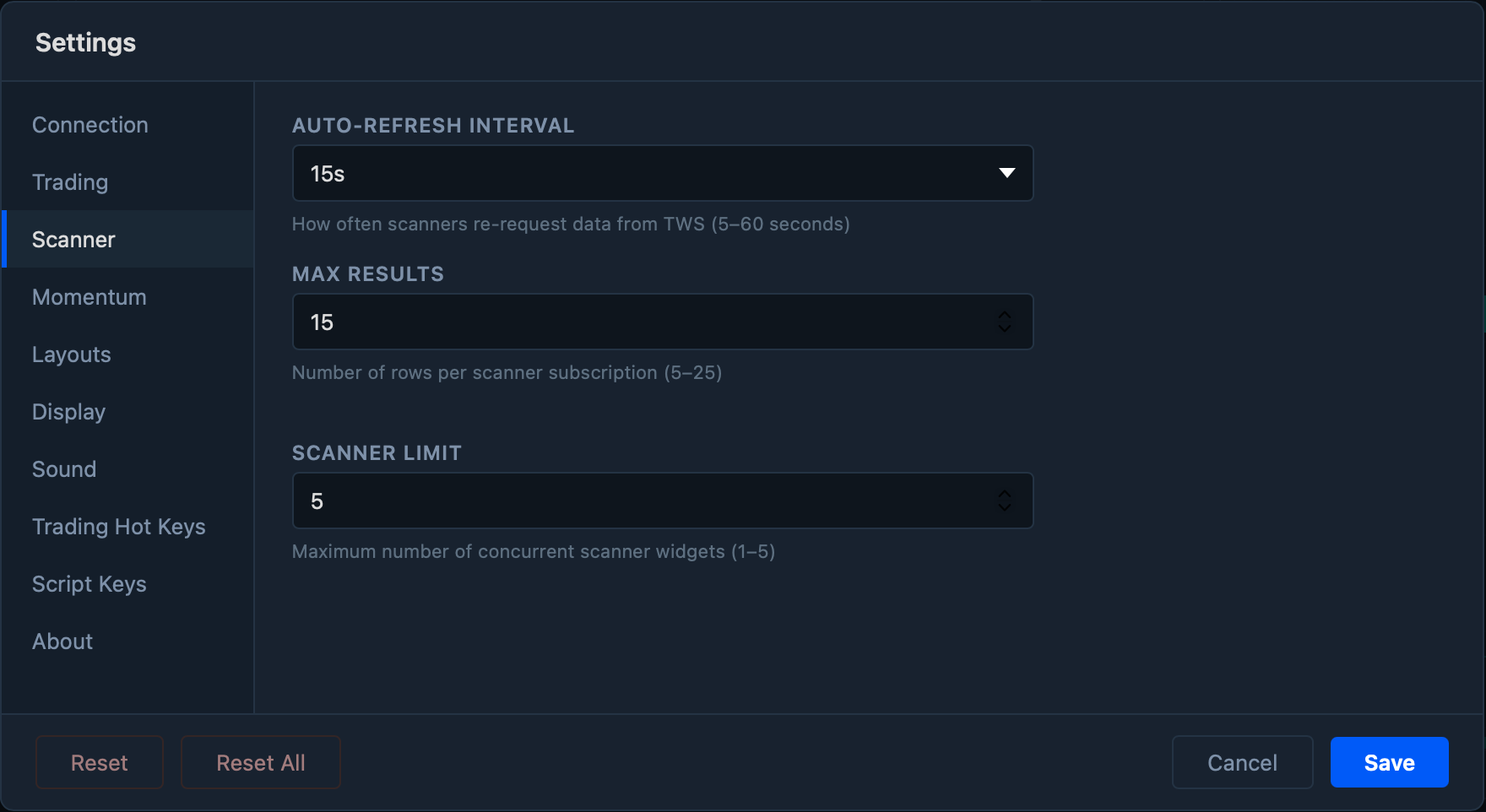
Controls for the scanner widgets: Auto-refresh interval (5–60 seconds), Max results per scanner (5–25), and the Scanner limit — how many scanners you can run at once (1–5).
Momentum
The momentum scanner is experimental. Treat its alerts as a rough heads-up, not a reliable signal — expect noise and missed moves, and always confirm on the chart before acting on anything it surfaces.
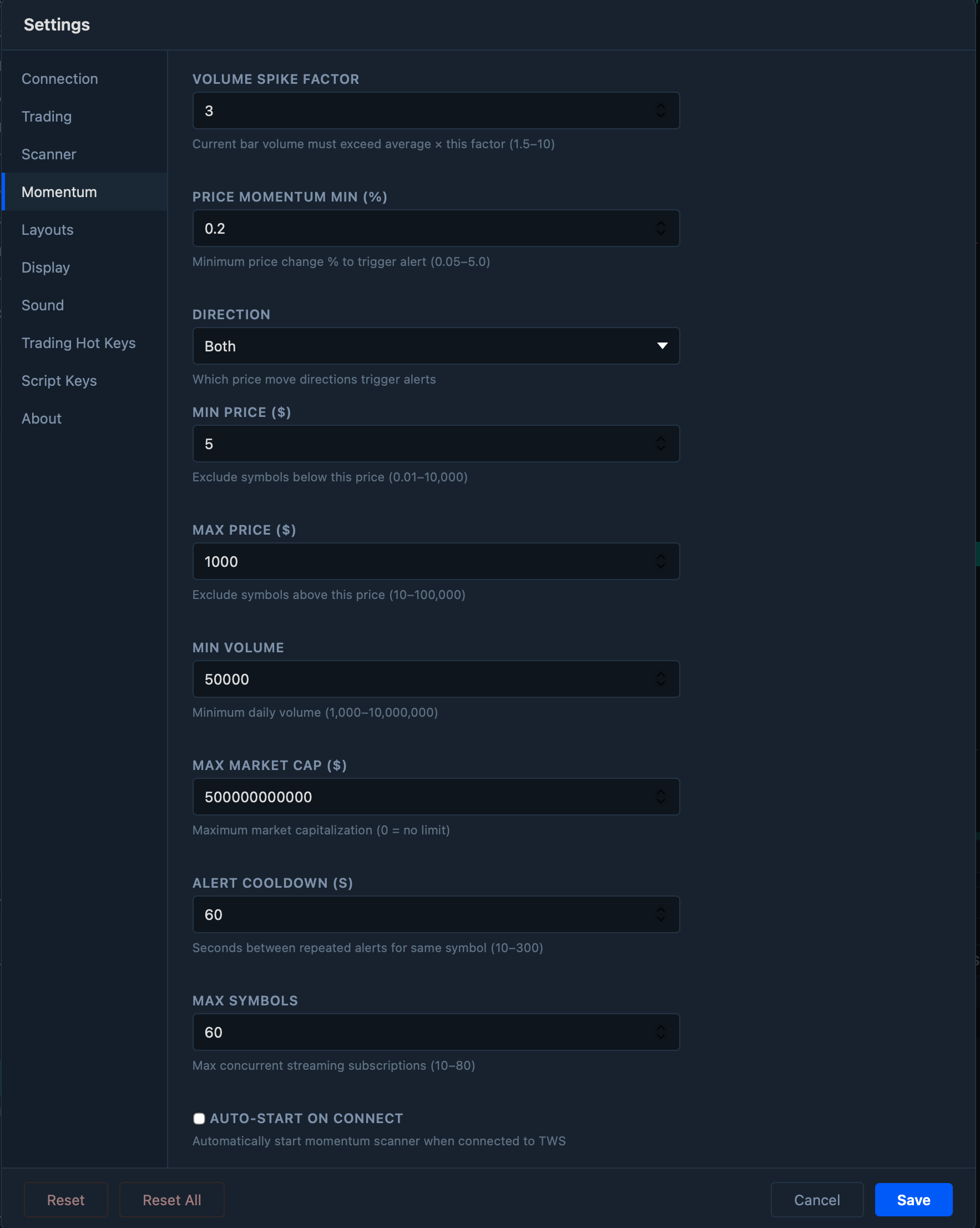
Tunes the momentum alert scanner, which flags sudden moves. Set the volume spike factor, minimum price move %, and direction (up, down, or both), then bound the universe with price, volume, and market-cap filters. Alert cooldown limits repeat alerts for the same symbol, and Auto-start on connect begins monitoring as soon as you connect to TWS.
Layouts
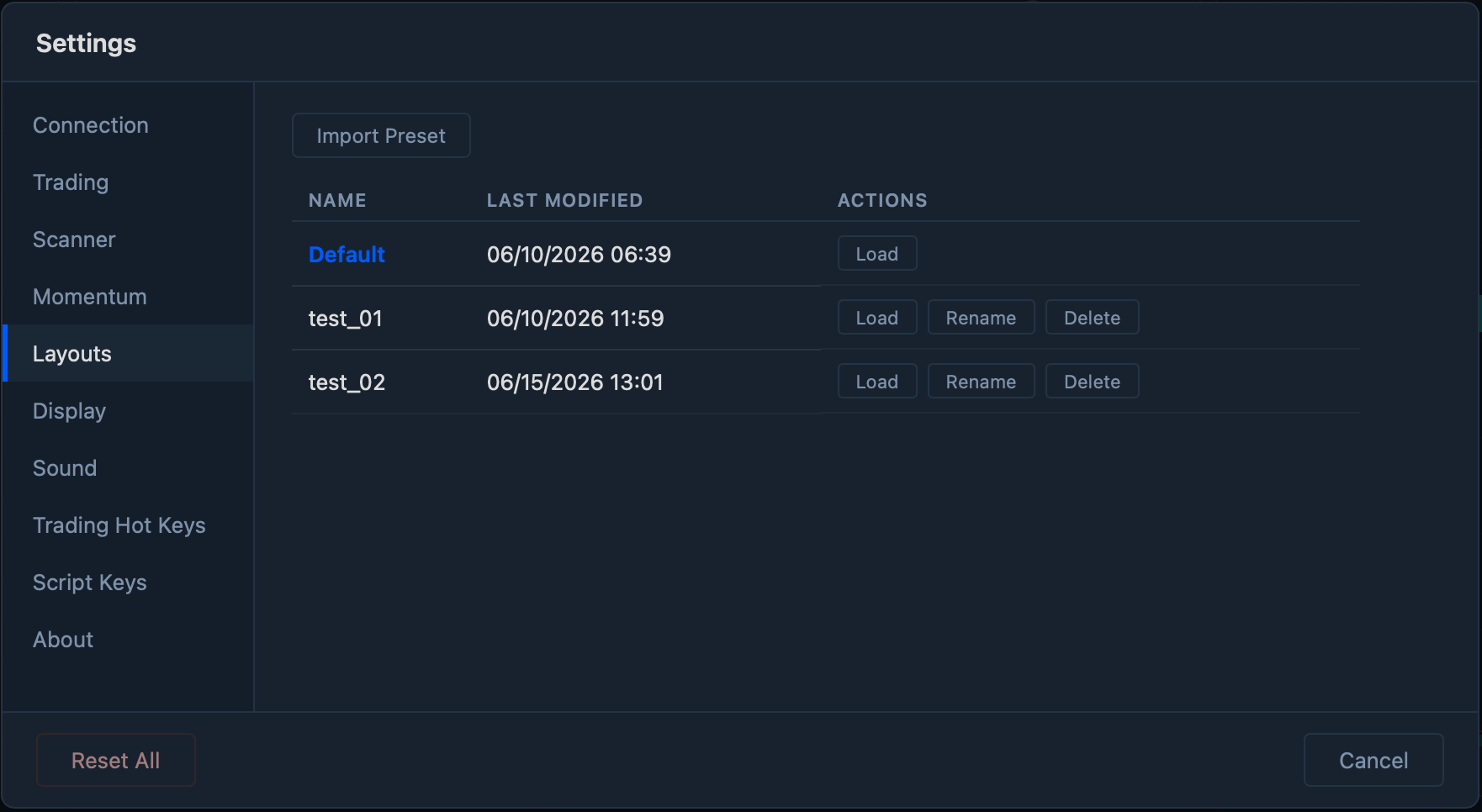
Manage your saved workspaces. Load, rename, or delete any layout, or Import a preset as a new starting point. Save the current arrangement any time with File → Save Layout As…. The Default layout can't be renamed or deleted.
Display
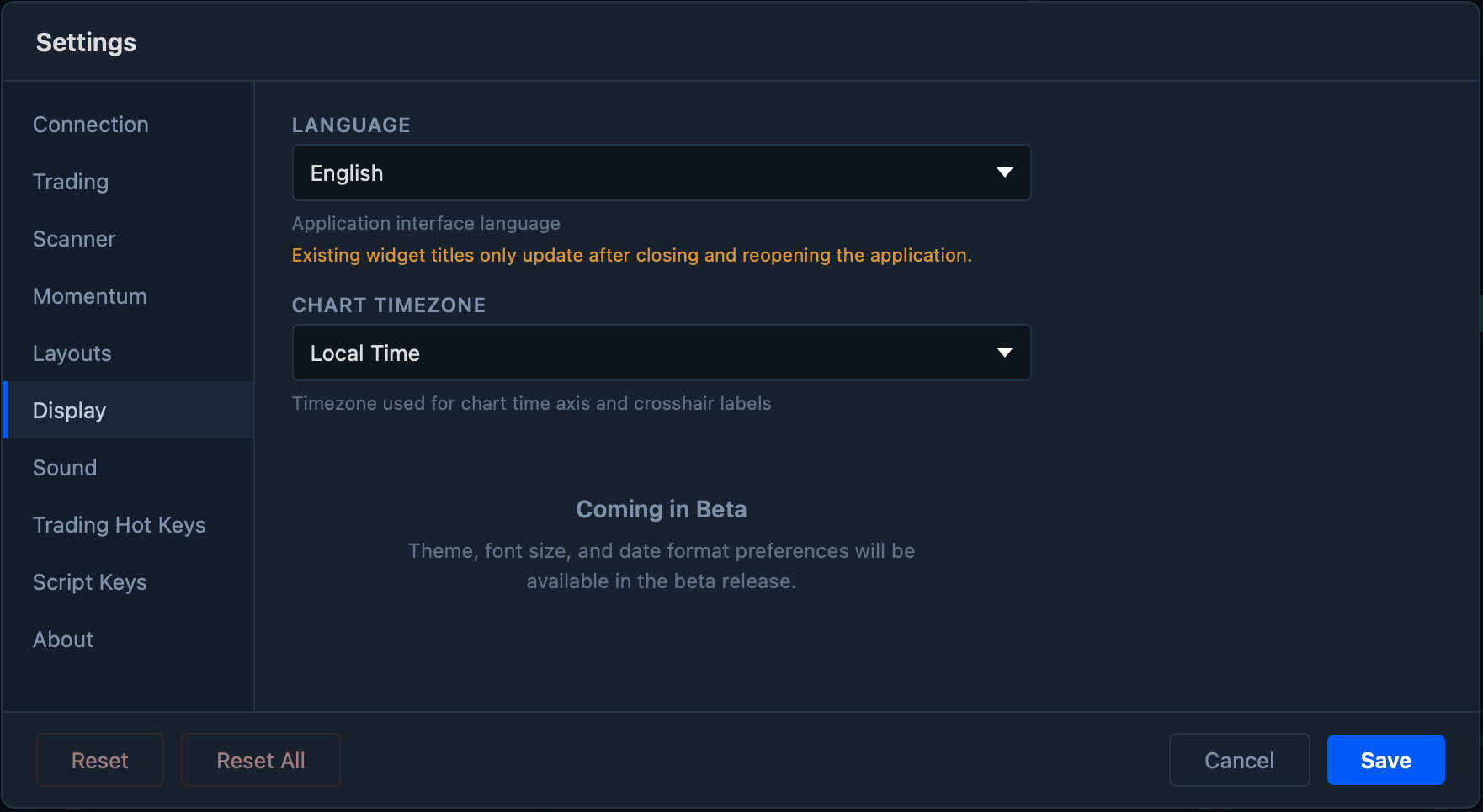
Interface preferences: Language (English, Deutsch, Español, Português, Français) and Chart timezone (Local, US/Eastern, or UTC). Changing the language updates most of the app immediately; existing widget titles refresh after you close and reopen TickForge.
Trading hot keys
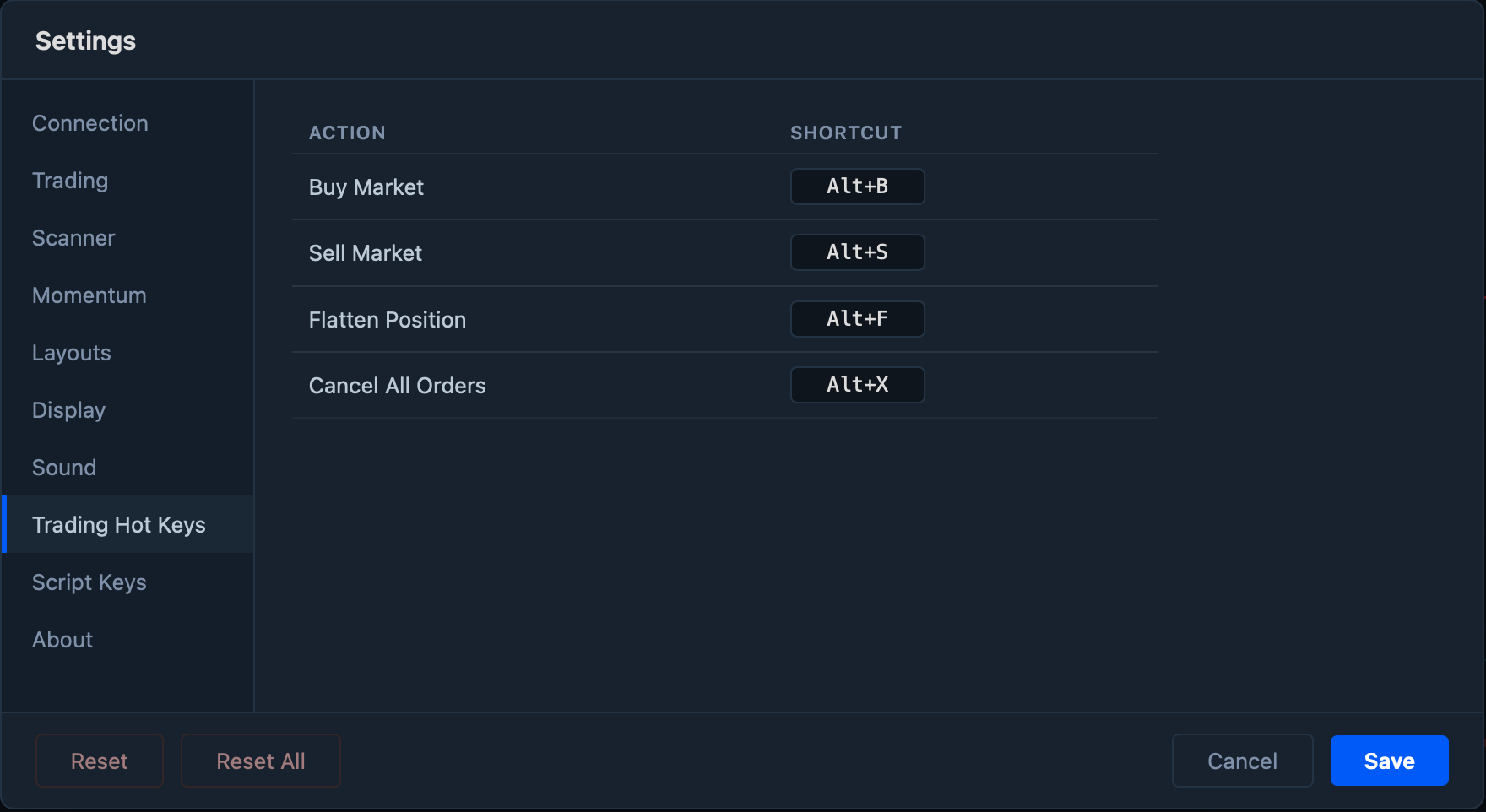
The one-key actions for fast trading. By default: Buy Market — Alt+B, Sell Market — Alt+S, Flatten Position — Alt+F, and Cancel All Orders — Alt+X. Click any shortcut to record a new key combination; TickForge warns you if a combo is already in use.
Script Keys
Script keys bind a key combo to a one-line order script, so a single keystroke can buy, sell, scale out, or fire a full bracket on your active symbol. This is where you add, edit, and validate them.
See Script keys for a complete guide to the script syntax, every field, and ready-to-use examples for day trading.
Risk
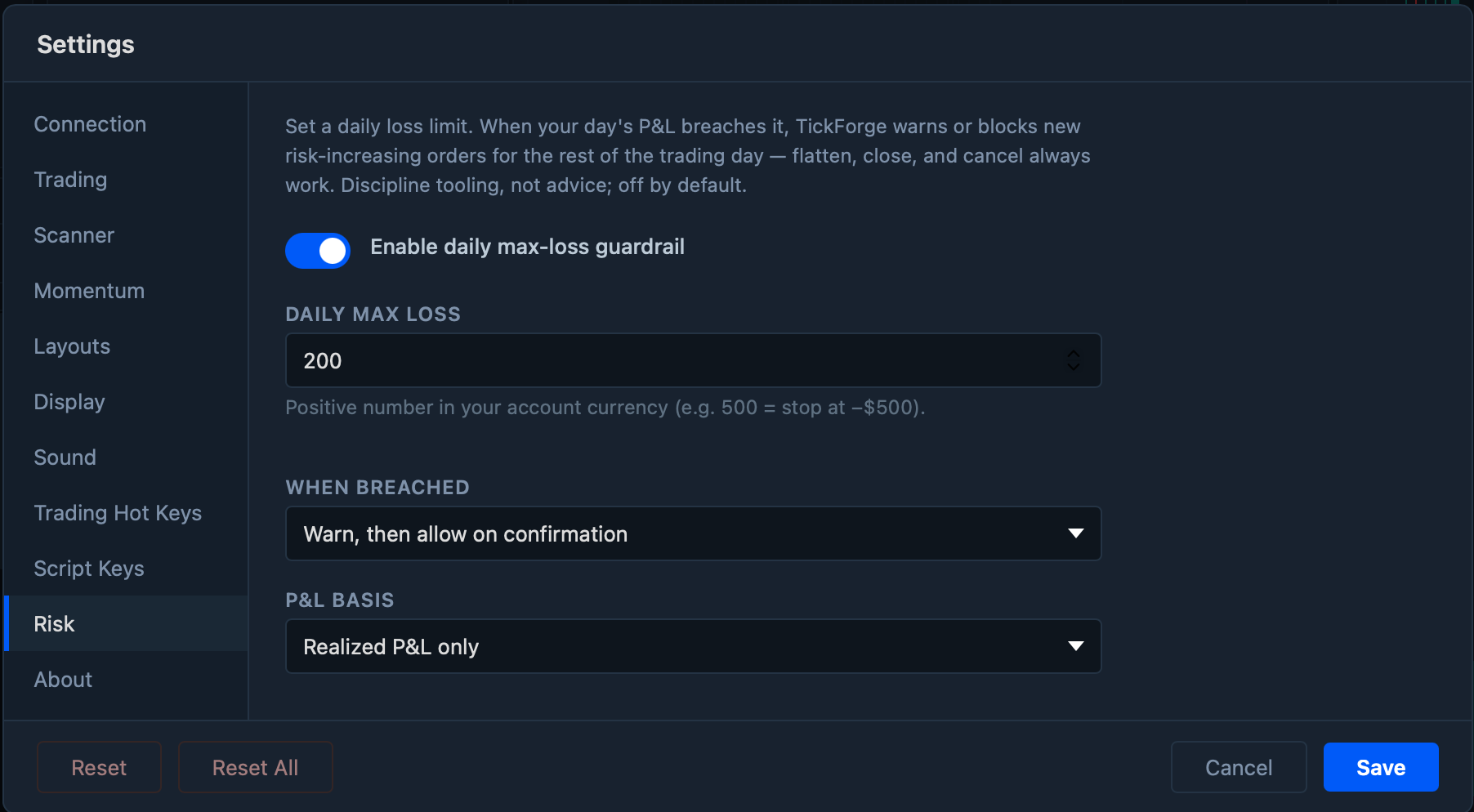
The daily max-loss guardrail. Set a daily loss limit, and when your day's P&L breaches it, TickForge warns or blocks new risk-increasing orders for the rest of the trading day. It is discipline tooling, not advice — it makes no market judgment, fires only on the number you chose, and is off by default.
- Enable daily max-loss guardrail — the master switch. Off unless you turn it on.
- Daily max loss — a positive number in your account currency (e.g.
500= stop at −$500). - When breached — Block new-risk orders, or Warn, then allow on confirmation.
- P&L basis — Day P&L (includes unrealized) or Realized P&L only.
What it never blocks
Closing risk always works, in every state. Flatten, any order that reduces your position in a symbol, order cancellations, and the take-profit and stop legs of a bracket you already have working are all allowed even while breached. What gets gated is new positions, adds, and reversals that would flip you through flat — plus a modify that raises the quantity on a working order.
How the day resets
The breach latches for the rest of the exchange session day (US/Eastern trading date) — not a rolling 24 hours and not local midnight. It survives restarting the app, and setting your computer's clock backwards will not unlatch it. The next session day starts clean.
When the guardrail can't see your account
If TickForge has no account or P&L data yet — you're disconnected, or the summary hasn't arrived — the guardrail goes inactive and says so rather than blocking you. A data hiccup must never stop you from managing a live position.
Changing your mind mid-day
You own your account, so you can still loosen or disable the guardrail while breached — but not by accident. TickForge asks you to type DISABLE to confirm, allows it once per trading day, and logs it.
This is client-side self-protection, not broker-side enforcement. The guardrail lives in TickForge and gates orders placed through TickForge — including those placed through the MCP integration. It cannot stop you from opening TWS and trading there instead. It is a seatbelt you chose to wear, not a lock someone else holds the key to.
Where to next
- Script keys — one-keystroke orders built from a short script.
- The TickForge window — the status bar, including the live risk chip.